Installing Answer Q&A Community Software on Ubuntu 26.10
Apache Answer is an open-source knowledge-based community platform used to build Q&A websites for technical support, customer support, knowledge sharing, and community engagement.
This guide explains how to install Apache Answer v2.0.3, the latest stable release verified for this guide, using Docker and Docker Compose.
Prerequisites
- Root access to your Ubuntu 26.10 server.
- A VPS with an internet connection.
- Access to TCP port 9080 for the initial setup.
Install Docker
Update the package list and install Docker:
apt update
apt install -y docker.io curl wget
Enable and start Docker:
systemctl enable --now dockerVerify the installation:
docker --versionCheck that the Docker service is running:
systemctl status docker --no-pager Install Docker Compose
Download the latest Docker Compose plugin for your system architecture:
mkdir -p /usr/local/lib/docker/cli-plugins
curl -SL "https://github.com/docker/compose/releases/latest/download/docker-compose-linux-$(uname -m)" -o /usr/local/lib/docker/cli-plugins/docker-compose
chmod +x /usr/local/lib/docker/cli-plugins/docker-compose
Verify the installation:
docker compose version Running Answer with Docker Compose
Create a directory for Answer:
mkdir -p /opt/answer
cd /opt/answer
Create the Docker Compose configuration:
cat > compose.yaml <<'EOF'
services:
  answer:
    image: apache/answer:2.0.3
    container_name: answer
    ports:
      - "9080:80"
    restart: unless-stopped
    volumes:
      - answer-data:/data

volumes:
  answer-data:
EOF
This configuration uses the official Apache Answer Docker image and a persistent Docker volume to store application data.
Pull the image:
docker compose pullStart Answer in detached mode:
docker compose up -dCheck the running container:
docker compose psView the application logs if needed:
docker compose logs -f answerPress Ctrl+C to exit the log display.
Configure the Firewall
If UFW is enabled, allow access to port 9080:
ufw allow 9080/tcpIf your VPS uses a provider-level firewall, security group, or external firewall, allow TCP port 9080 there as well.
For production deployments, restrict direct access to this port if you plan to use a reverse proxy.
Access Answer Setup
Open your browser and visit:
http://YOUR_SERVER_IP:9080Replace YOUR_SERVER_IP with the actual public IP address of your VPS.
Configure Answer
Select Your Preferred Language
Choose your preferred language during the initial setup.

Choose a Database
Select the database option appropriate for your deployment. SQLite may be suitable for testing or smaller installations, while MySQL or PostgreSQL can be considered for production environments where supported by the current setup.
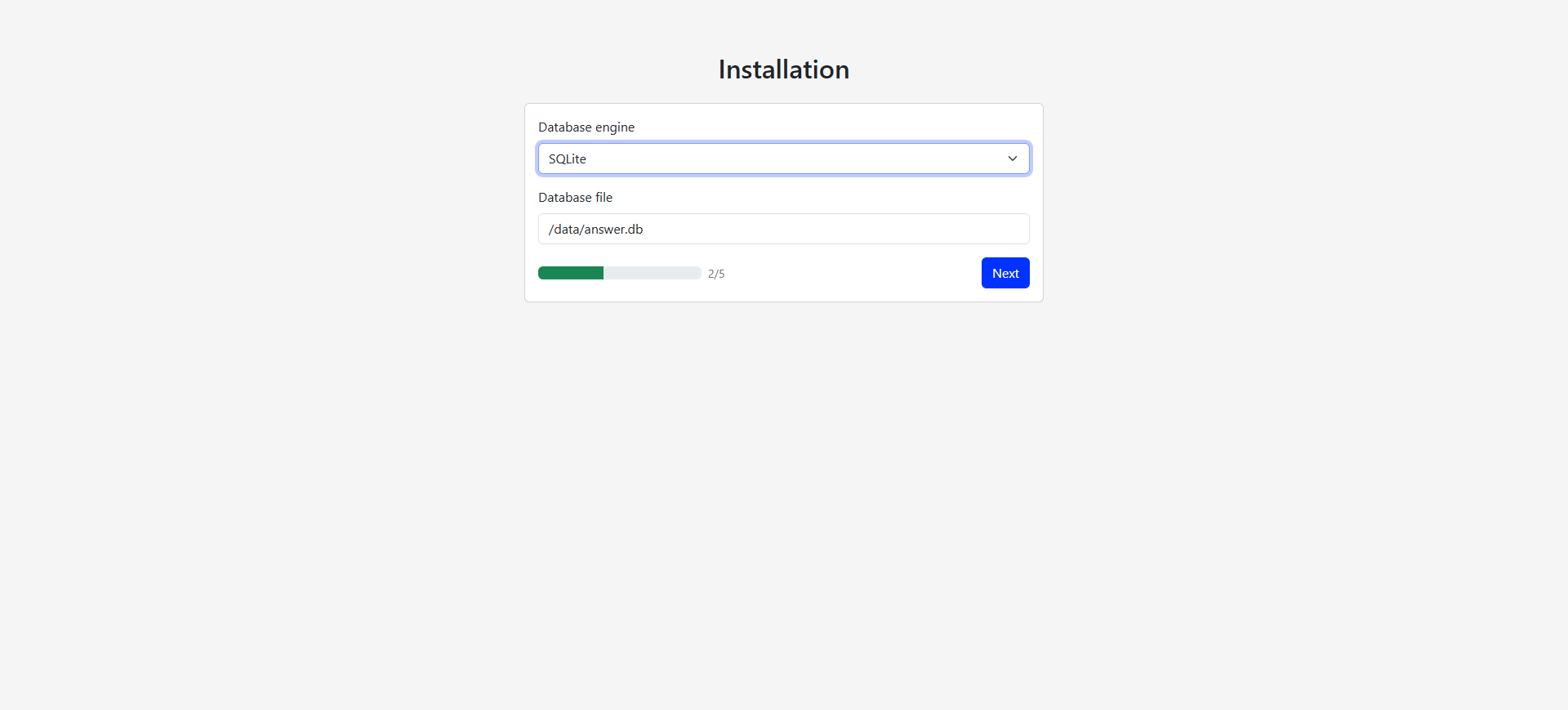
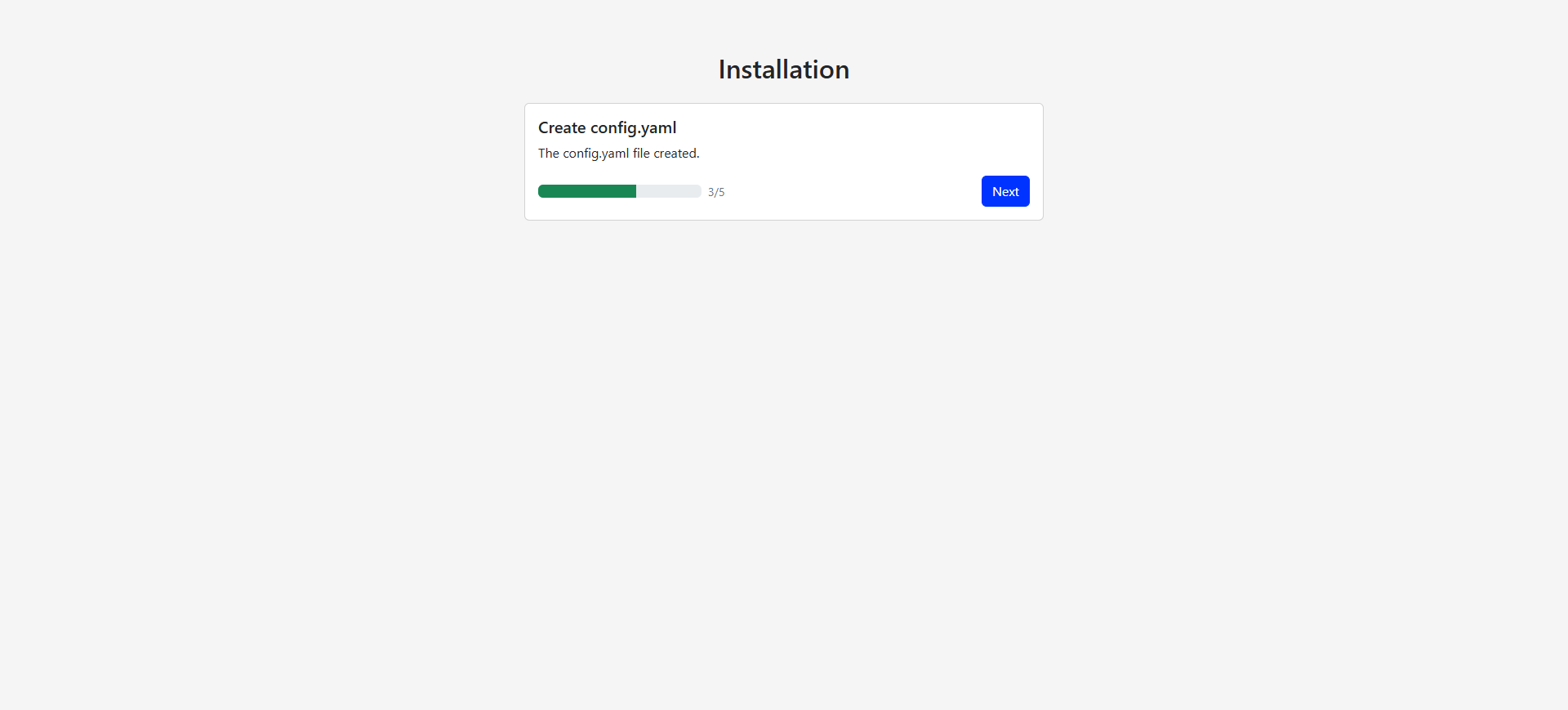
Follow the setup interface's instructions for the selected database.
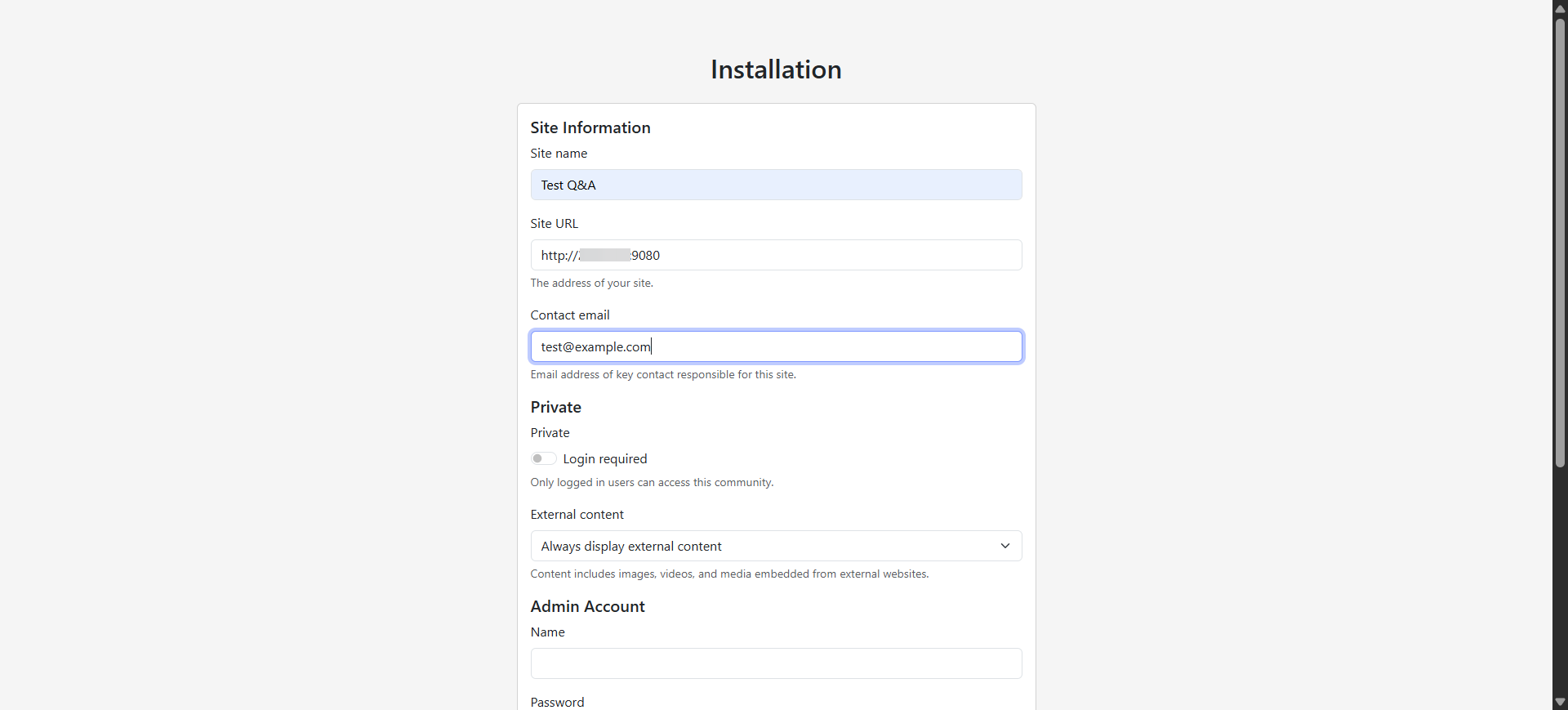
Enter Site Details
Provide the required information:
- Site Name: Name of your Q&A platform.
- Site URL: Public URL of your website.
- Contact Email: Email address for site contact.
- Administrator Account: Create the administrator username and password.
Review the settings and continue.
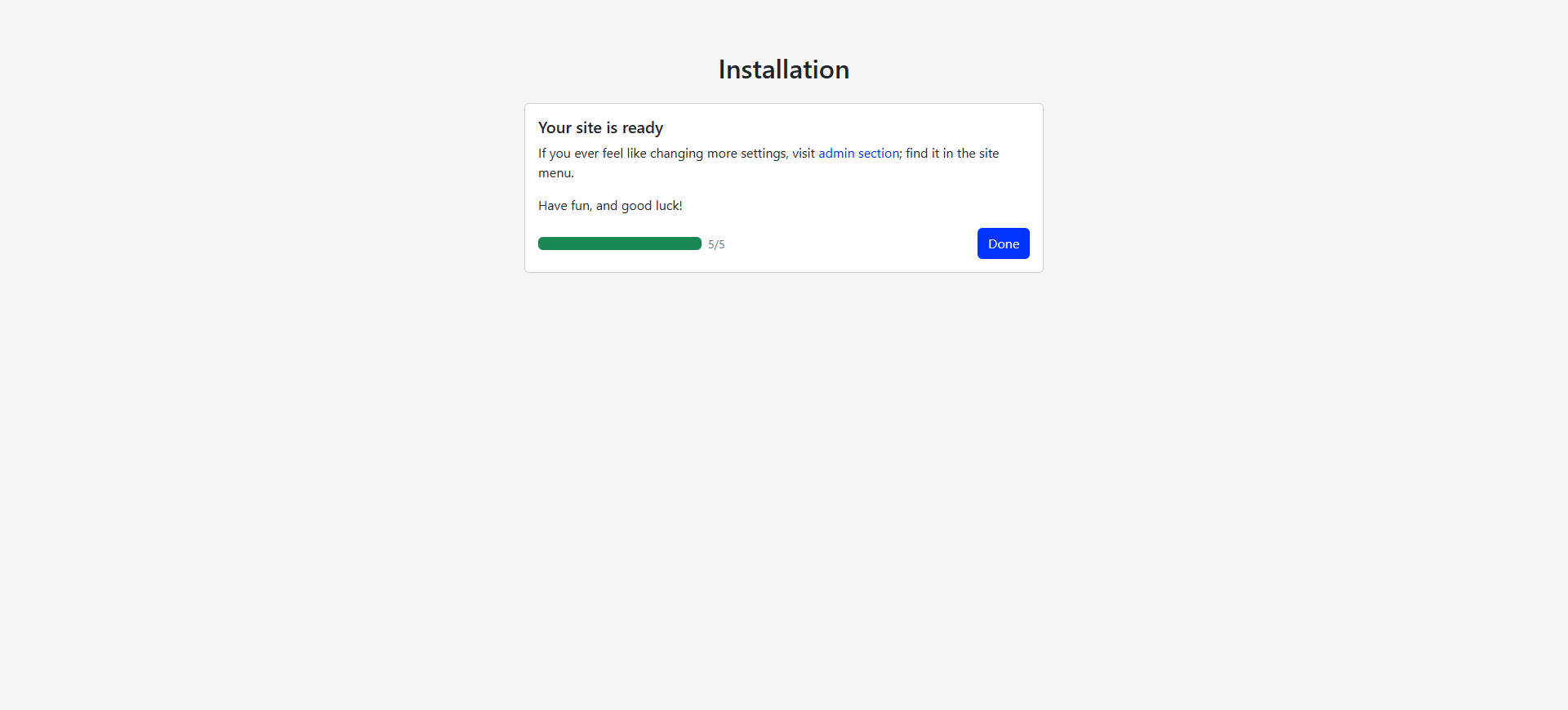
Click Done to complete the setup.
Log in to the Answer Dashboard
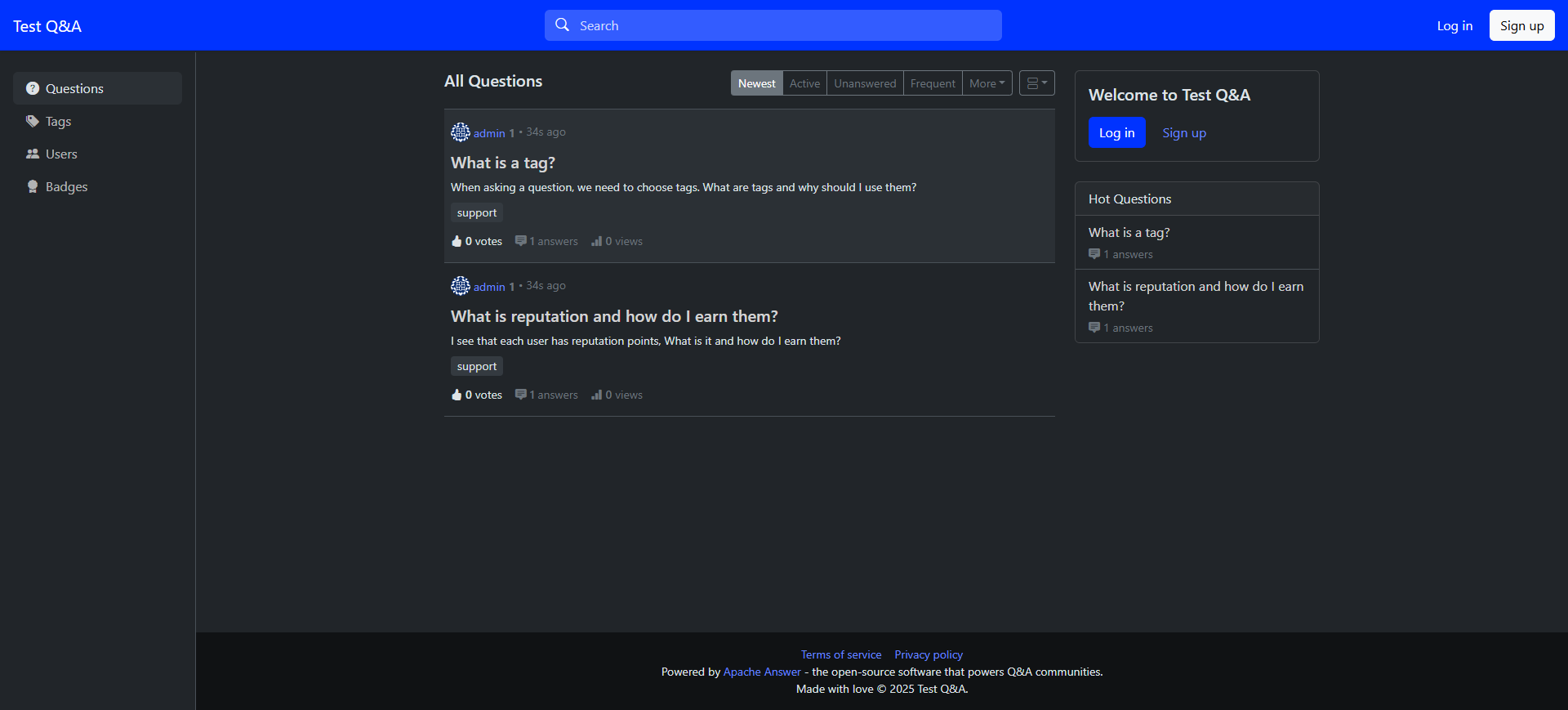
Open the Answer website and navigate to the login page. Enter the administrator credentials you created during setup.
After logging in, you can manage questions, answers, users, and other community settings from the dashboard.
Running Answer in the Background
Docker Compose starts Answer in detached mode when you use -d:
cd /opt/answer
docker compose up -d
Check the container status:
docker compose psAnswer will automatically restart according to the configured restart policy if the container stops unexpectedly or the Docker service restarts.
Updating Answer
Before updating, back up your data. The following command creates a backup of the persistent Docker volume while the application is stopped:
cd /opt/answer
docker compose down
docker run --rm -v answer_answer-data:/data -v /root:/backup alpine tar -czf /backup/answer-data-backup.tar.gz -C /data .
Check the actual volume name with docker volume ls before running the backup command. If the volume has a different name, replace answer_answer-data with the correct name.
To update to a newer stable release, change the image tag in compose.yaml to the desired version, then run:
docker compose pull
docker compose up -d
Check the release notes and compatibility requirements before upgrading.
Conclusion
Apache Answer is now installed on Ubuntu 26.10 using Docker Compose. You can access the Q&A platform at http://YOUR_SERVER_IP:9080 and manage your community through the administrator dashboard.
For production use, configure a domain name and HTTPS through a reverse proxy.
CrownCloud - Get a SSD powered KVM VPS at $4.5/month!
Use the code WELCOME for 10% off!
1 GB RAM / 25 GB SSD / 1 CPU Core / 1 TB Bandwidth per month
Available Locations: LAX | MIA | ATL | FRA | AMS