How to Enable Microphone on Windows Server 2025
By default, the microphone is not enabled in Remote Desktop sessions. Follow the steps below to enable the microphone on your Windows Server 2025 VPS.
Configure Remote Desktop Connection
-
Open Remote Desktop Connection on your local computer.
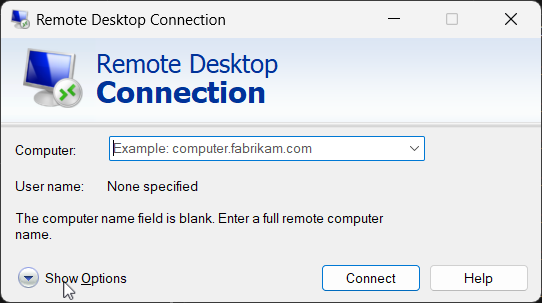
- Click on Show Options.
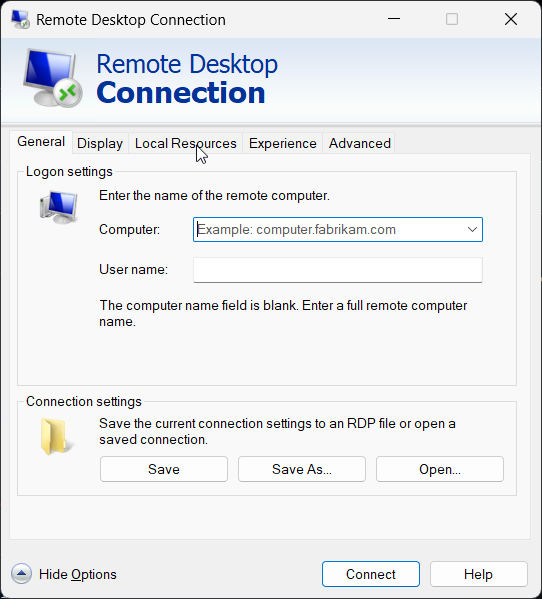
- Go to the Local Resources tab.
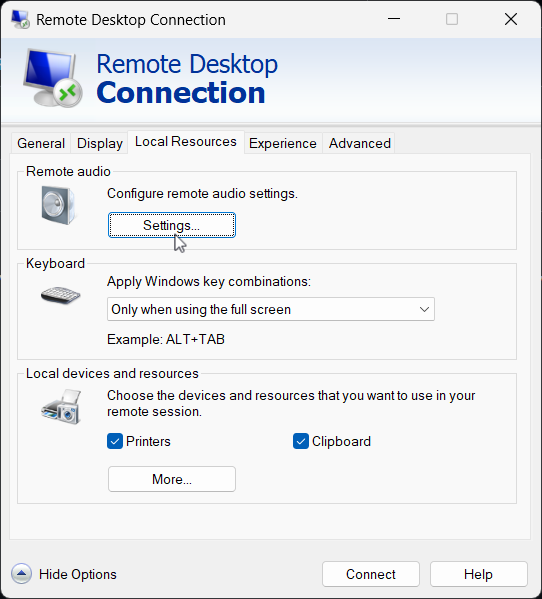
- Under Remote audio, click on Settings.
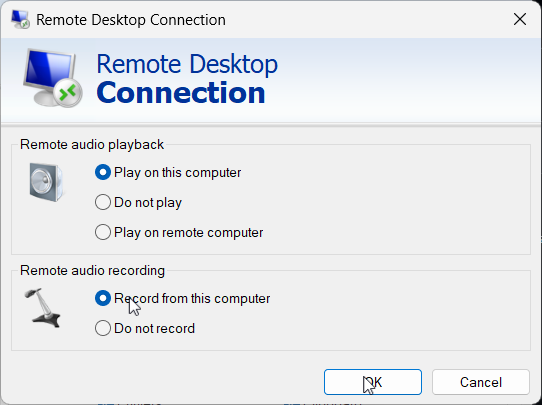
- Under Remote audio recording, select Record from this computer and click OK.
- Click Connect and log in to your Windows Server 2025 VPS.
Enable Audio Recording Redirection
-
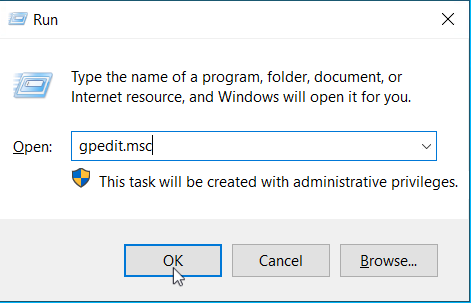
Open Run by pressing
Win + R. -
Enter:
gpedit.msc - Click OK.
-
Navigate to:
Computer Configuration > Administrative Templates > Windows Components > Remote Desktop Services > Remote Desktop Session Host > Device and Resource Redirection -
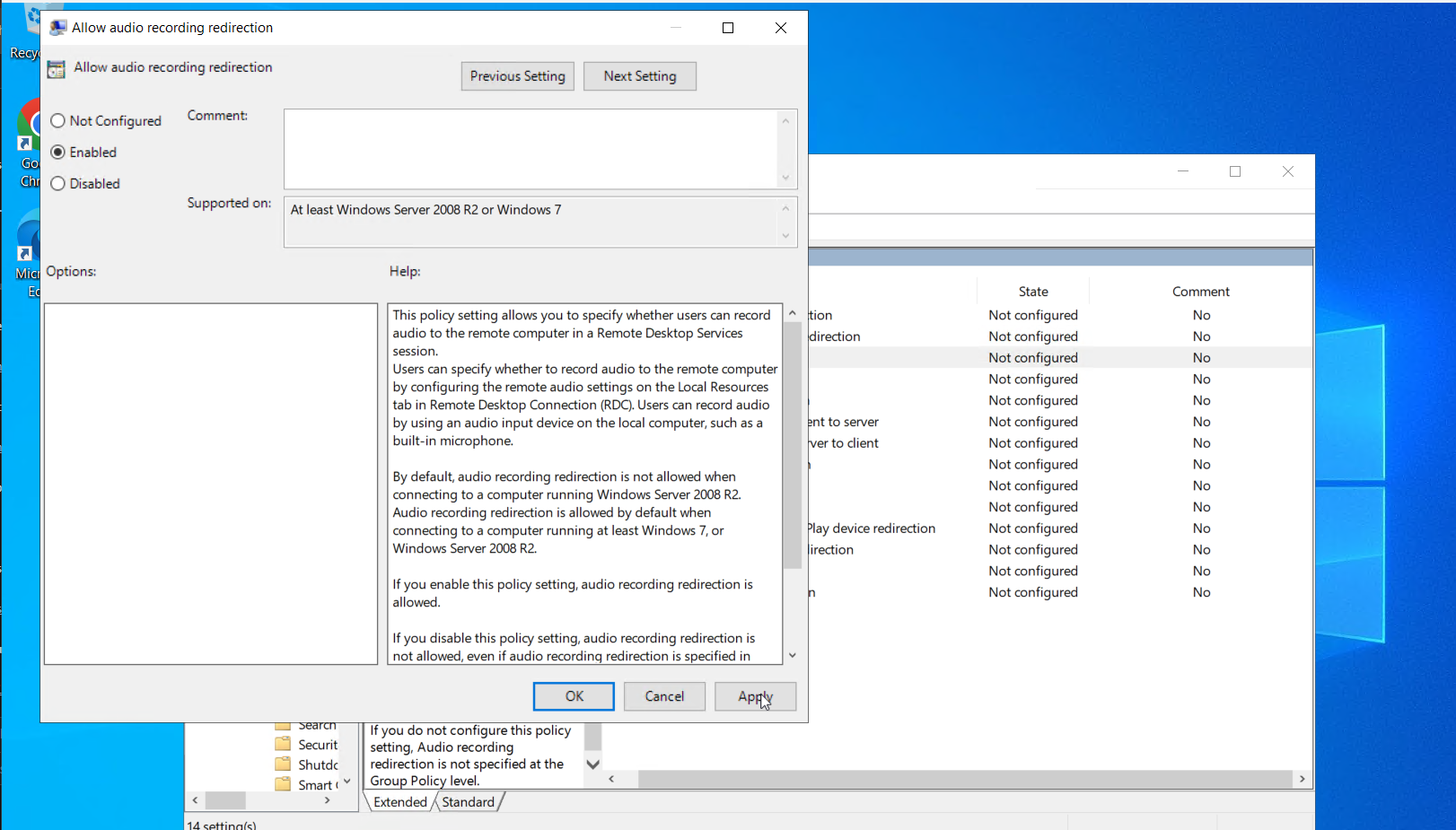
Double-click Allow audio recording redirection.
-
Select Enabled and click Apply.
- Click OK.
Reconnect to the VPS
-
Disconnect the Remote Desktop session.
-
Connect to the VPS again using Remote Desktop Connection.
-
Open Sound settings on the VPS.
-
Check the Input section.
- The microphone from your local computer should now be available.
Done!
To enable audio on Windows Server 2025, please refer to How to Enable Audio on Windows Server 2025.
CrownCloud - Get a SSD powered KVM VPS at $4.5/month!
Use the code WELCOME for 10% off!
1 GB RAM / 25 GB SSD / 1 CPU Core / 1 TB Bandwidth per month
Available Locations: LAX | MIA | ATL | FRA | AMS