How to Install LAMP Stack with MariaDB on Ubuntu 26.10
A LAMP stack is a collection of open-source software used to host dynamic websites and web applications. LAMP stands for Linux, Apache, MariaDB/MySQL, and PHP.
This guide explains how to install Apache, MariaDB, and PHP on Ubuntu 26.10, configure the firewall, and test PHP processing.
Update the System
Update the package lists and install available upgrades:
apt update
apt upgrade -y
Install Apache
Install Apache and its utilities:
apt install -y apache2 apache2-utilsCheck the Apache service status:
systemctl status apache2 --no-pagerIf Apache is not running, start it:
systemctl start apache2Enable Apache to start automatically at boot:
systemctl enable apache2Check the Apache version:
apache2 -vOutput:
Server version: Apache/2.4.68 (Ubuntu)
Server built:   2026-08-14T19:12:39
The exact version may vary depending on the available Ubuntu package updates.
Enable Firewall
Allow HTTP and HTTPS traffic through UFW:
ufw allow http
ufw allow https
Check the firewall status:
ufw statusIf UFW is not enabled, ensure SSH access is allowed before enabling it on a remote server.
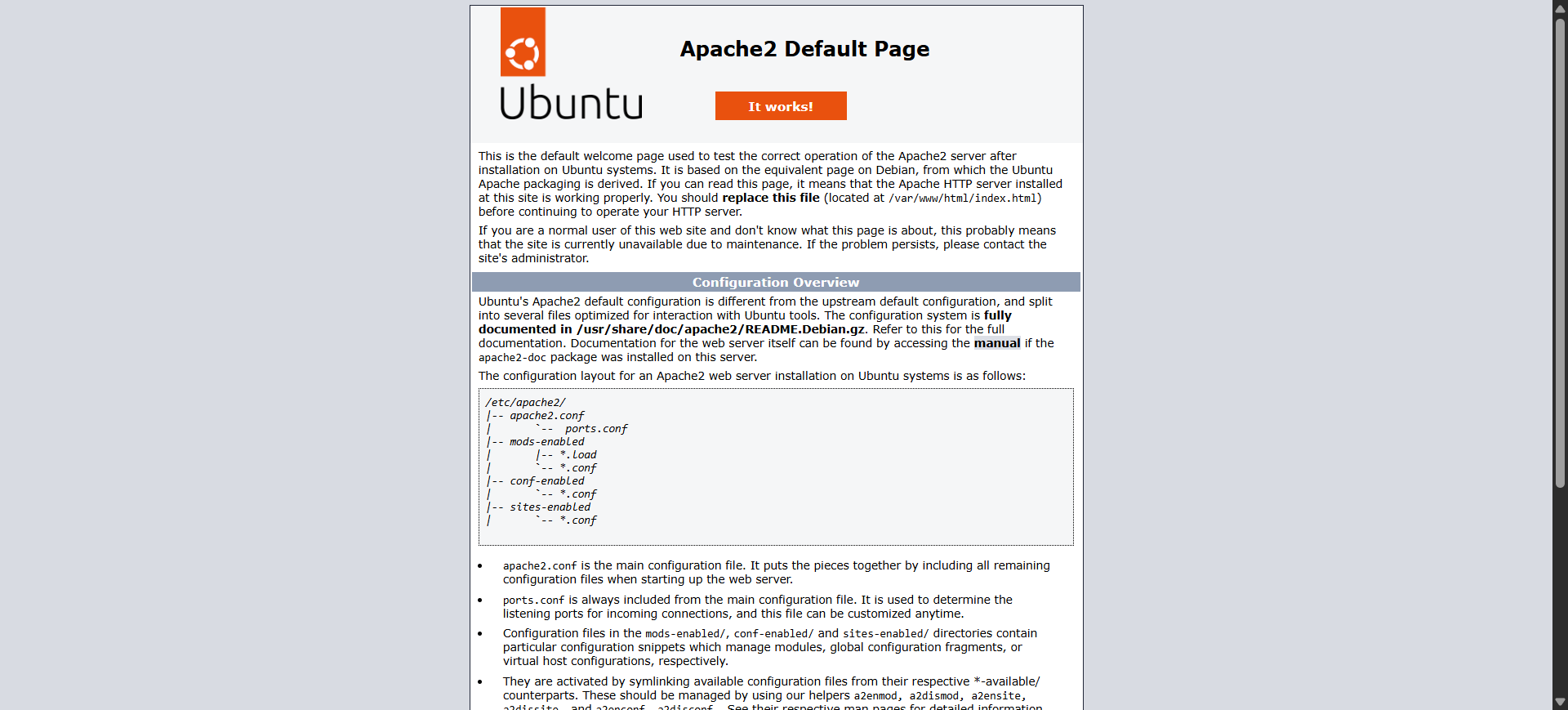
Open your server's IP address in a browser:
http://YOUR_SERVER_IPReplace YOUR_SERVER_IP with your actual server IP address.
You should see the Apache default welcome page.
Install MariaDB Server
Install MariaDB Server and the client:
apt install -y mariadb-server mariadb-clientEnable and start MariaDB:
systemctl enable --now mariadbCheck the service status:
systemctl status mariadb --no-pager Secure MariaDB
Run the security configuration utility:
mariadb-secure-installationFollow the prompts to apply the recommended security settings:
- Remove anonymous users: Yes.
- Disallow remote root login: Yes.
- Remove the test database: Yes.
- Reload privilege tables: Yes.
On Ubuntu, MariaDB root access commonly uses Unix socket authentication. Follow the prompts according to your installation; setting a separate root password may not be necessary.
Log in to MariaDB
Connect to MariaDB as root:
mariadb -u rootTo exit the MariaDB shell:
exitCheck the installed MariaDB version:
mariadb --versionOutput:
mariadb from 11.8.9-MariaDB, client 15.2 for debian-linux-gnu (x86_64) using EditLine wrapperThe installed version depends on the Ubuntu package repository and subsequent updates.
Install PHP
Ubuntu 26.10 provides PHP 8.5 through its default repositories.
Install PHP and the required extensions:
apt install -y php libapache2-mod-php php-mysql php-mbstring php-gd php-xml php-curl php-zipThe libapache2-mod-php package allows Apache to process PHP scripts directly, while php-mysql enables PHP applications to connect to MariaDB and MySQL databases.
Check the installed PHP version:
php --versionCheck the Apache PHP module:
php_version=$(php -r 'echo PHP_MAJOR_VERSION.".".PHP_MINOR_VERSION;')
a2enmod "php${php_version}"
systemctl restart apache2
Verify the Apache service:
systemctl status apache2 --no-pager Test PHP
Create a PHP information file in Apache's document root:
nano /var/www/html/info.phpAdd the following content:
<?php phpinfo(); ?>Save the file and open the following address in your browser:
http://YOUR_SERVER_IP/info.phpReplace YOUR_SERVER_IP with your actual server IP address.
The PHP information page should display details about the installed PHP version, enabled extensions, and configuration.
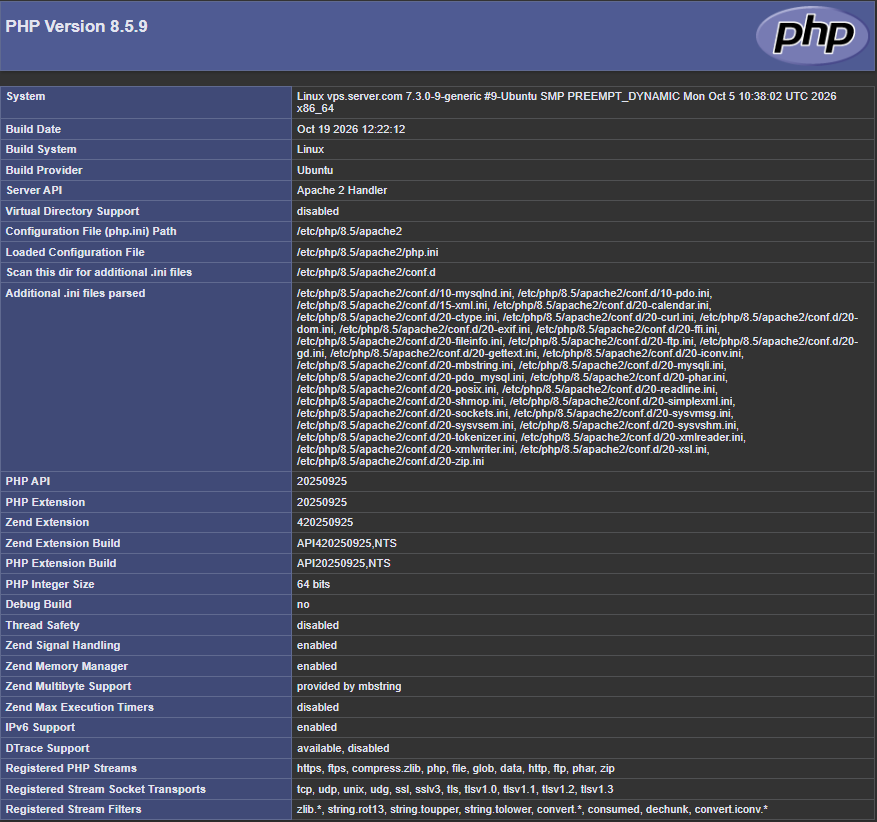
Important: Remove the information file immediately after testing because it exposes details about your PHP configuration.
rm /var/www/html/info.php Run PHP-FPM with Apache (Optional)
PHP-FPM (FastCGI Process Manager) is an alternative to Apache's PHP module. It can be useful for hosting multiple websites and managing PHP worker processes separately.
Install PHP-FPM
Install PHP-FPM:
apt install -y php-fpmDetermine the installed PHP version:
php_version=$(php -r 'echo PHP_MAJOR_VERSION.".".PHP_MINOR_VERSION;')Enable the required Apache modules:
a2enmod proxy_fcgi setenvifEnable the PHP-FPM Apache configuration:
a2enconf "php${php_version}-fpm"If the Apache PHP module is enabled, disable it to avoid using both PHP handlers:
a2dismod "php${php_version}"Enable and start the PHP-FPM service:
systemctl enable --now "php${php_version}-fpm"Restart Apache:
systemctl restart apache2 Verify PHP-FPM
Check the PHP-FPM service status:
systemctl status "php${php_version}-fpm" --no-pagerExample output:
php8.5-fpm.service - The PHP 8.5 FastCGI Process Manager
     Loaded: loaded
     Active: active (running)
The exact service name and PHP version depend on the installed packages.
Test PHP again by creating an info.php file as described in the previous section. After confirming that PHP works, remove the file.
rm -f /var/www/html/info.php Verify the LAMP Stack
Check that Apache and MariaDB are running:
systemctl status apache2 --no-pager
systemctl status mariadb --no-pager
Check the PHP version:
php --versionCheck the Apache version:
apache2 -vCheck the MariaDB version:
mariadb --versionYou should now have Apache, MariaDB, and PHP installed and ready to use.
Conclusion
You have successfully installed the LAMP stack with MariaDB and PHP on Ubuntu 26.10.
Apache serves your website, MariaDB stores application data, and PHP processes dynamic content. You can now use this environment to host PHP-based applications and websites.
CrownCloud - Get a SSD powered KVM VPS at $4.5/month!
Use the code WELCOME for 10% off!
1 GB RAM / 25 GB SSD / 1 CPU Core / 1 TB Bandwidth per month
Available Locations: LAX | MIA | ATL | FRA | AMS