How to Install Ubuntu 26.10
Ubuntu 26.10, codenamed "Stonking Stingray", was officially released in October 2026. It is an interim release that includes updated software packages, security improvements, and enhanced hardware support. Ubuntu 26.10 will receive support for 9 months, until July 2027.
Login to CrownPanel
Login to your CrownPanel account.
To begin the installation process, start by mounting the Ubuntu 26.10 ISO file.
To mount the ISO, click on CD-ROM, select the Ubuntu 26.10 ISO from the drop-down menu, and then click the Mount button. This process will take approximately 2–3 minutes.
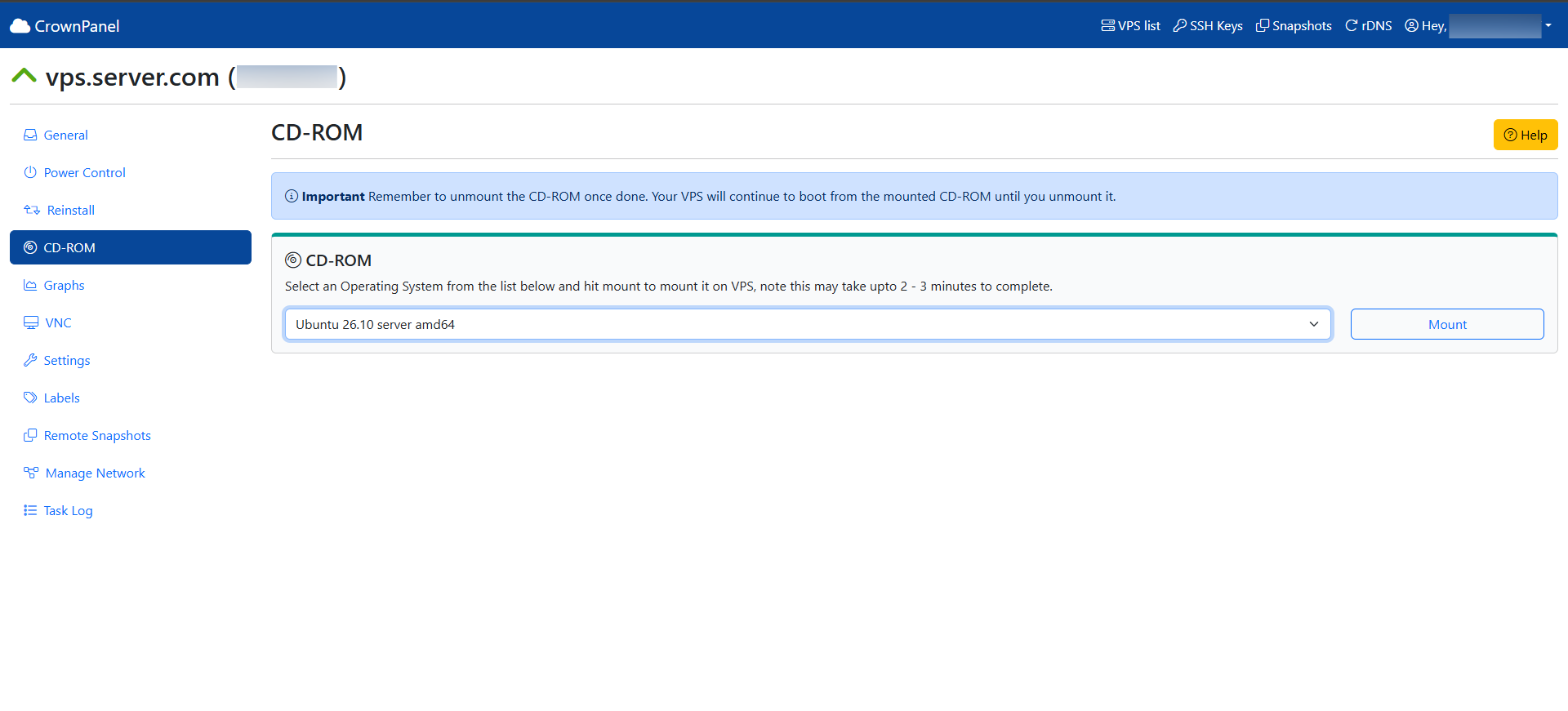
Once the ISO has mounted (you can check the status in the Task Log tab), navigate to the Power Control tab and perform a Reboot task on the server.
Next, switch to the VNC tab and launch VNC to start the installation.
If VNC doesn't show the 26.10 installer, click on CTRL+ALT+DEL from the VNC console to send a reboot.
Start the Installation
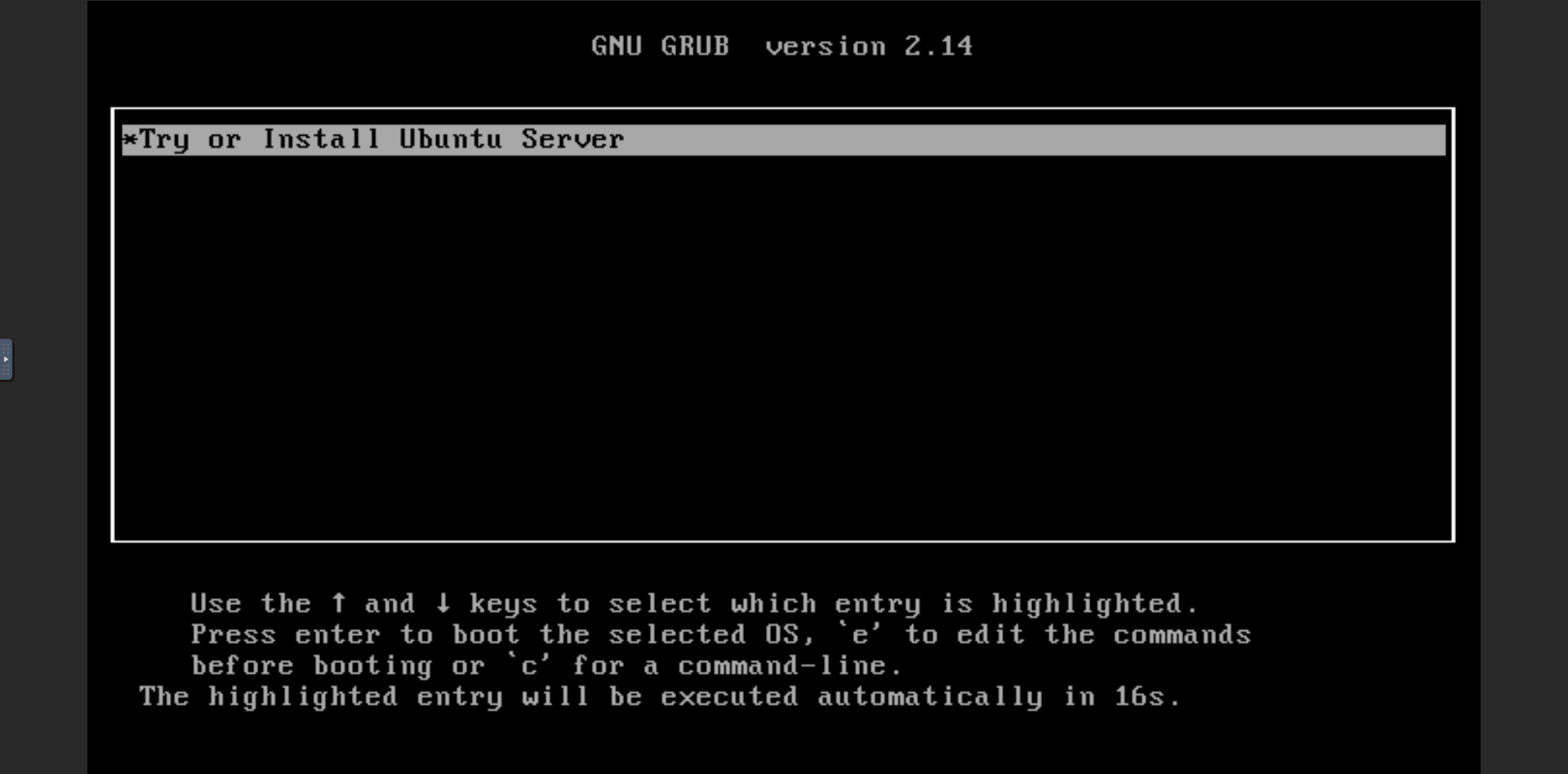
When the server boots from the mounted 26.10 ISO, you'll see the installer. Choose the Try or Install Ubuntu Server option to start the installation process.
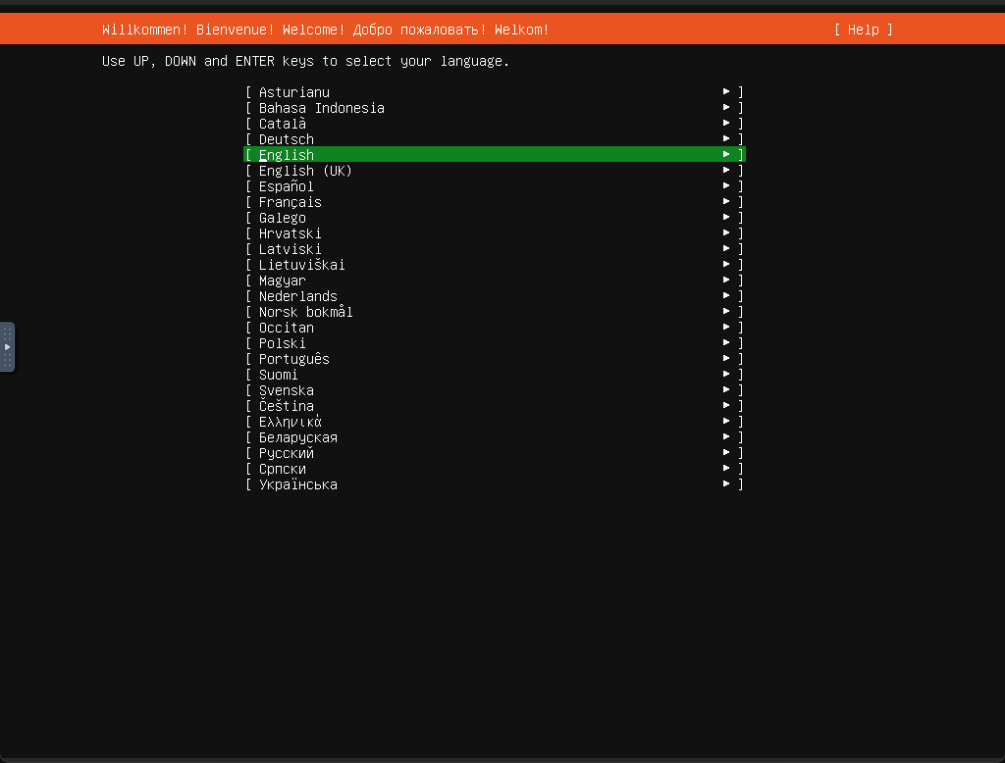
Select the desired language and click on Continue.
In the next step, you may be prompted to update the installer if a newer version is available. It is recommended to proceed with the update.
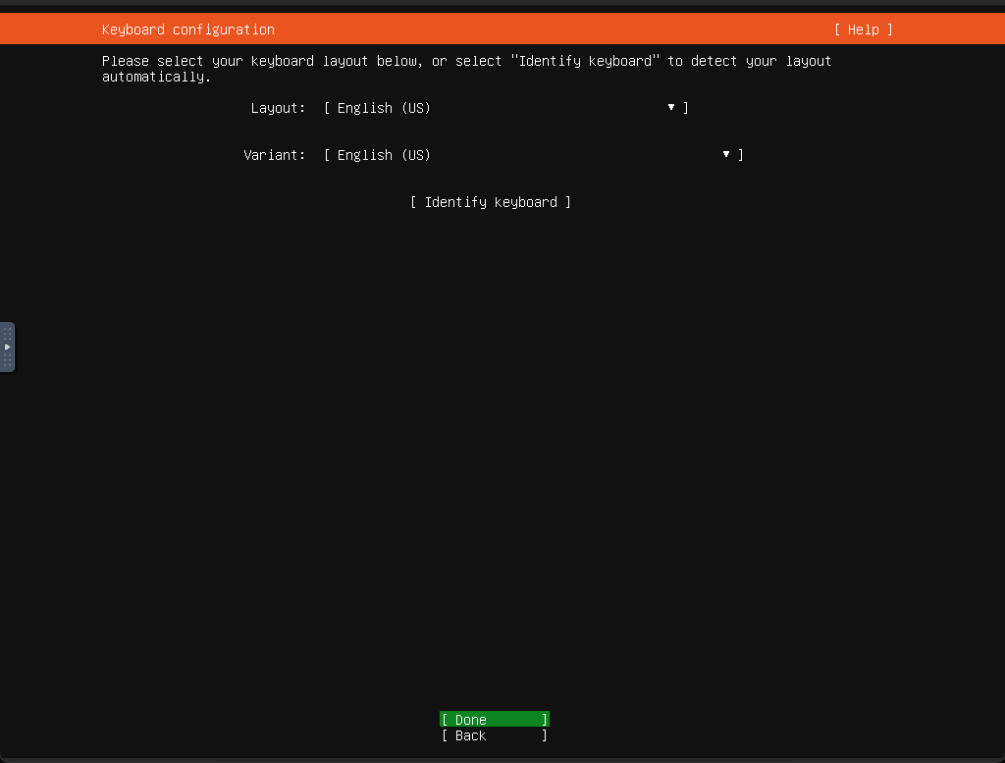
Select the desired keyboard layout and click on Done.
Select the type of installation and click on Done.
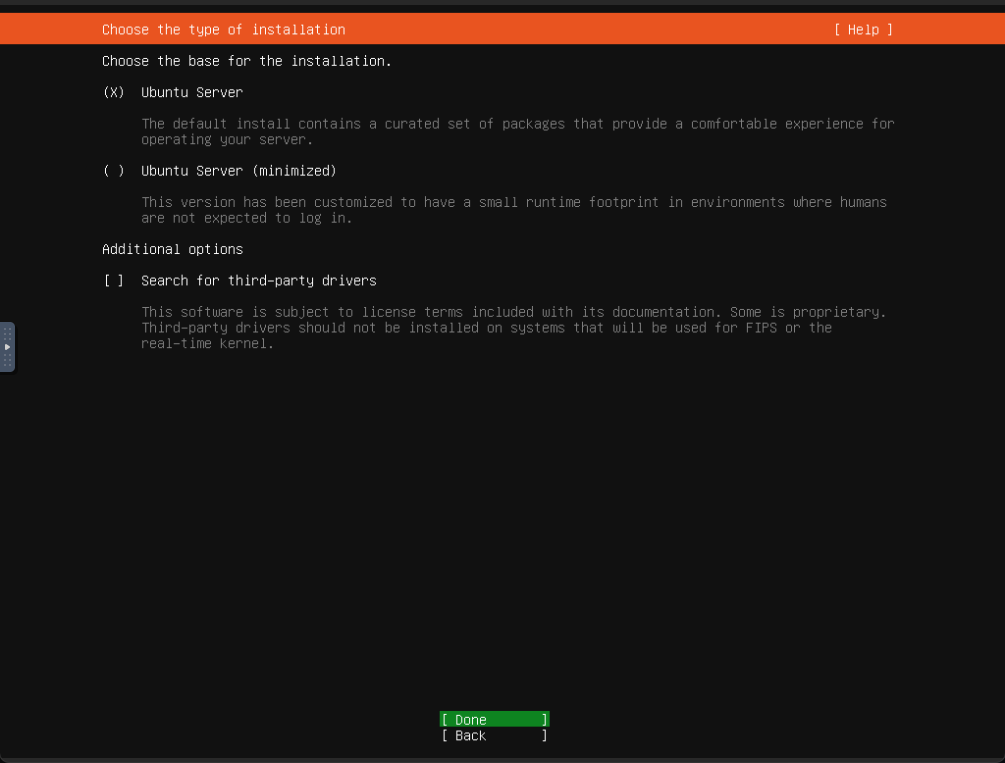
Select the network configuration and click Done.
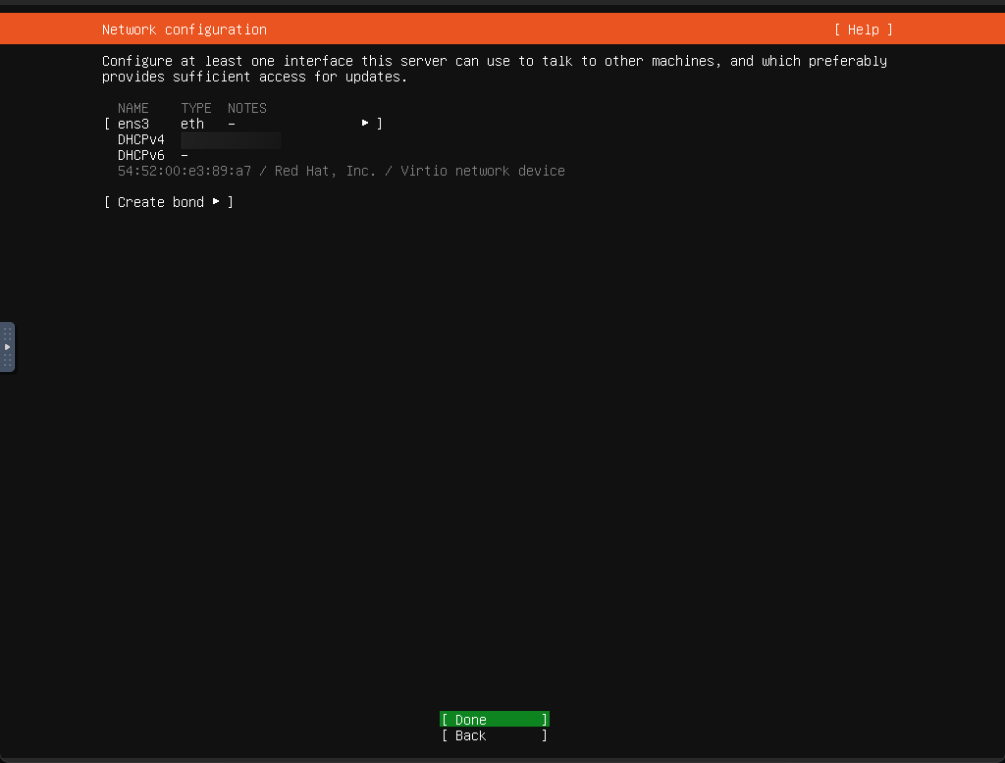
You can either configure a static IP address or continue with DHCP by pressing ENTER.
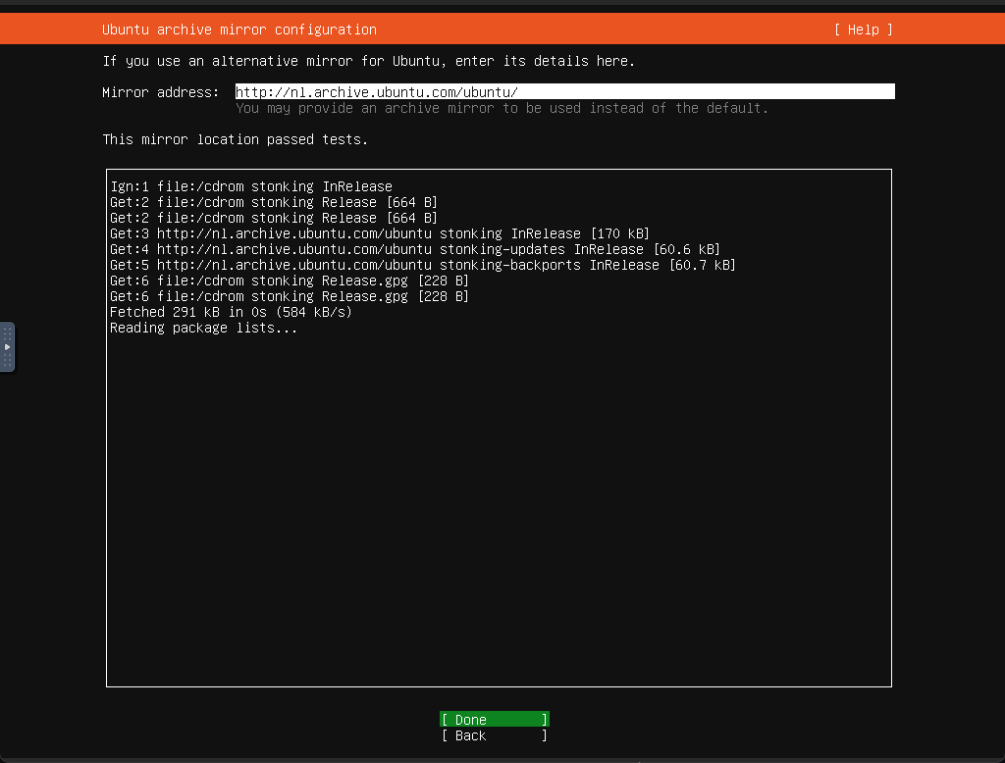
Next, in the mirror selection, keep the default mirror that Ubuntu 26.10 automatically detects.
For disk partitioning, we will keep it simple and use automatic partitioning. Select the "Use an entire disk" option and continue.
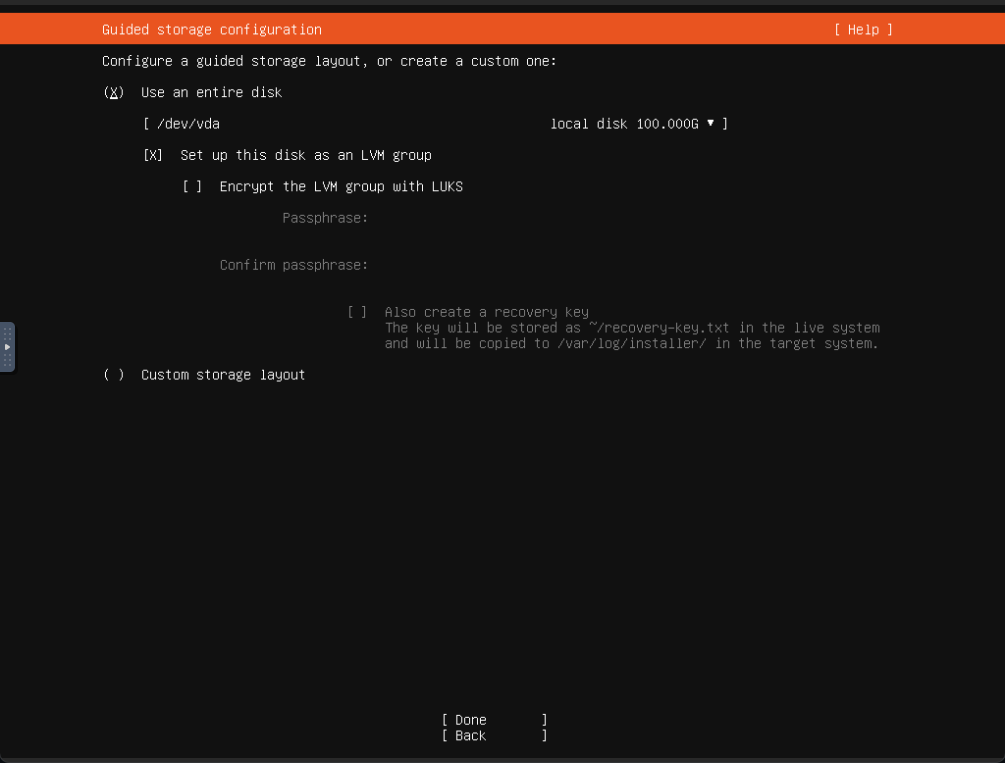
Review the partition layout and proceed.
Since this will overwrite existing data on the disk, confirm the prompt by selecting "Continue."
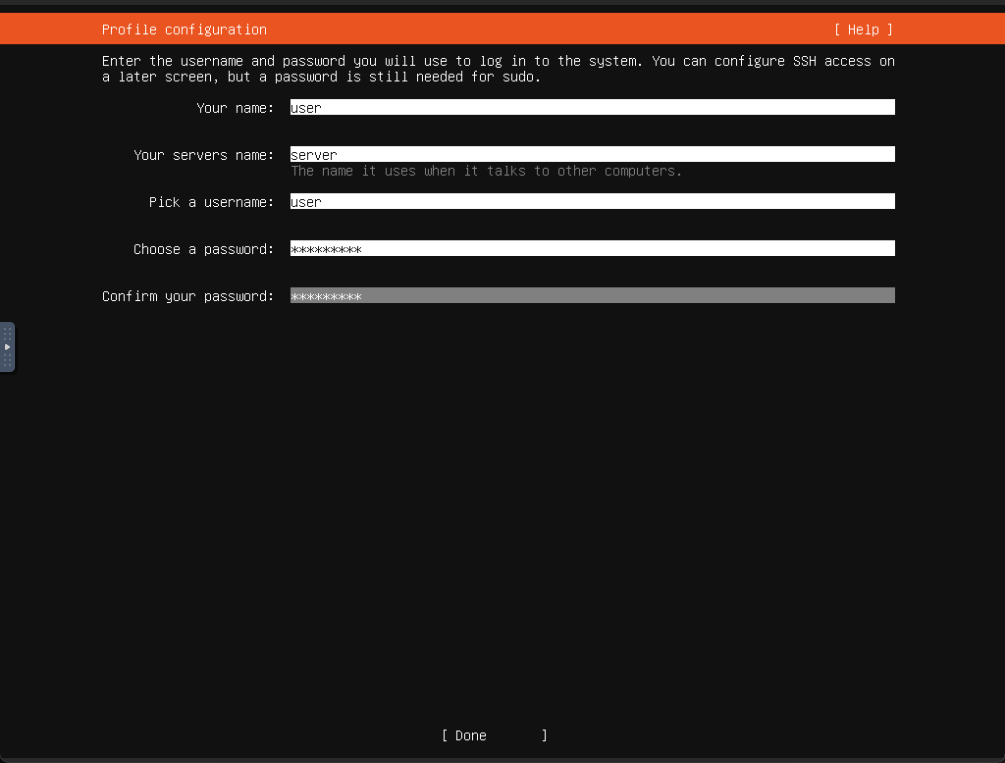
For profile setup, enter the required user details. These credentials will be used later to log in to the server.
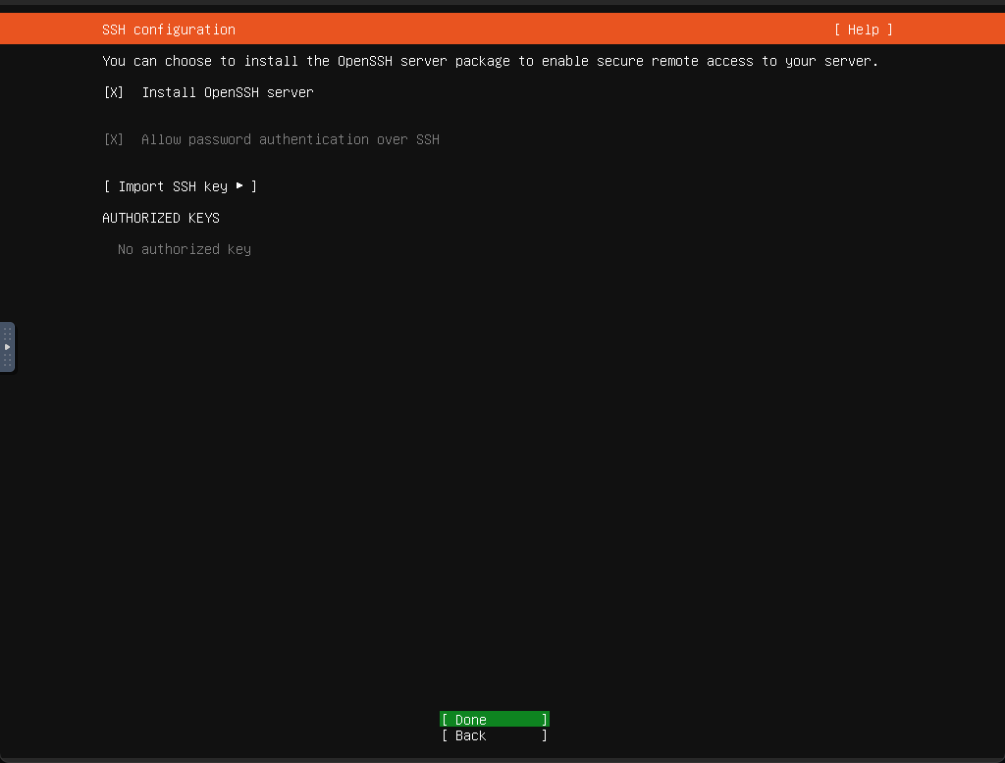
Select the OpenSSH server option to enable remote access to your server after installation.
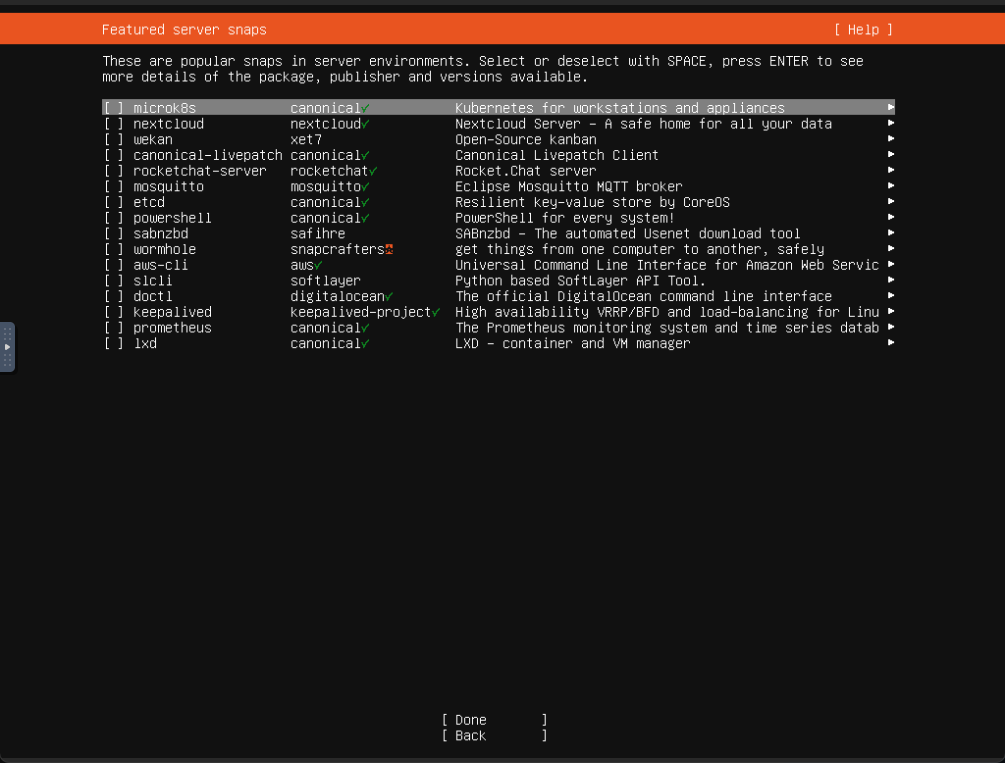
The installer also provides optional packages for pre-installation. You may select additional packages if required.
For this guide, we will proceed with a minimal setup (no extra packages selected).
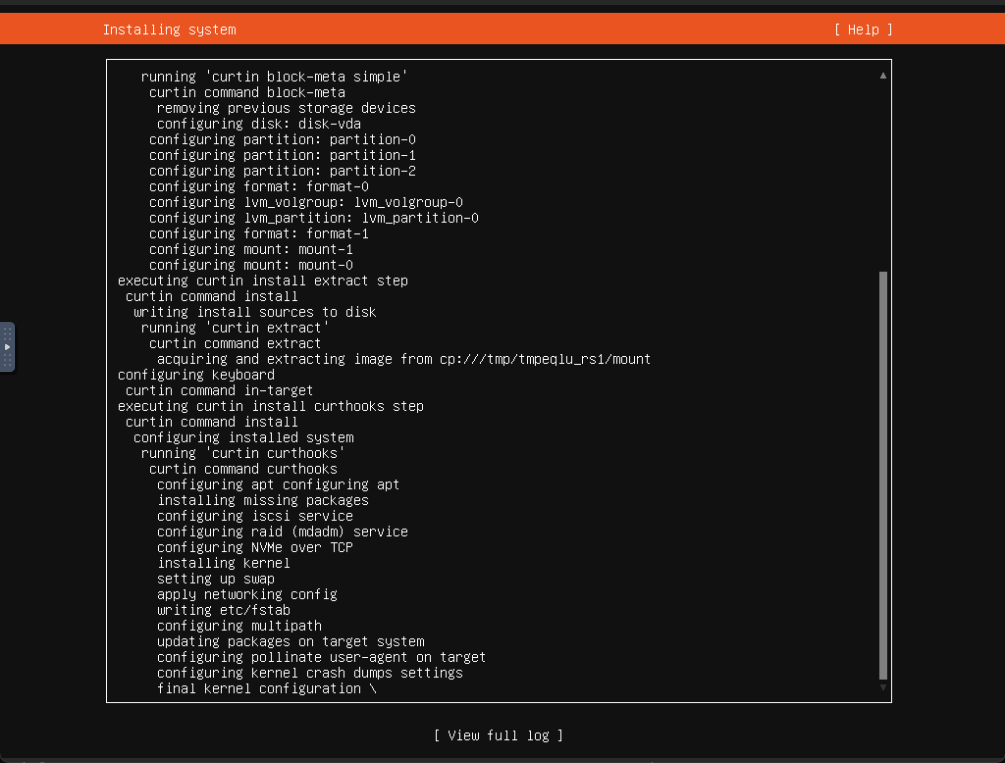
At this stage, Ubuntu 26.10 will begin installing on the disk.
Once the installation is complete, proceed with rebooting the server.
After selecting reboot, Ubuntu will prompt you to remove the installation medium.
To unmount the ISO, switch back to CrownPanel, go to the "CD-ROM" tab, and click on "Unmount".
Return to the VNC console and press ENTER to reboot the VPS.
The server will now boot into your fresh installation of Ubuntu 26.10.
You can log in using the credentials configured during the Profile setup step.
Done! Your Ubuntu 26.10 server is now ready to use.
Note: Ubuntu 26.10 is an interim release, supported until July 2027. For long-term production deployments, consider using Ubuntu 26.04 LTS instead.
CrownCloud - Get a SSD powered KVM VPS at $4.5/month!
Use the code WELCOME for 10% off!
1 GB RAM / 25 GB SSD / 1 CPU Core / 1 TB Bandwidth per month
Available Locations: LAX | MIA | ATL | FRA | AMS