Step-by-Step Guide: Installing and Configuring Wiki.js with Docker on Ubuntu 26.10
Wiki.js is a powerful and modern wiki application that runs on Node.js. It features a user-friendly interface, Markdown support with live preview, version control, powerful search, customizable themes, and plugin extensibility.
Common uses include internal documentation, knowledge base management, project wikis, educational resources, and event planning.
This guide walks you through installing Wiki.js on Ubuntu 26.10 using Docker, along with PostgreSQL 15, Wiki.js Update Companion, and UFW firewall configuration.
Update the System
Before installing Wiki.js and Docker, update the system packages:
apt update -y
apt upgrade -y
Install Docker
Install the required dependencies:
apt install ca-certificates curl gnupg lsb-release -yAdd the Docker GPG key and repository:
mkdir -p /etc/apt/keyrings

curl -fsSL https://download.docker.com/linux/ubuntu/gpg | gpg --dearmor -o /etc/apt/keyrings/docker.gpg

echo "deb [arch=$(dpkg --print-architecture) signed-by=/etc/apt/keyrings/docker.gpg] https://download.docker.com/linux/ubuntu $(lsb_release -cs) stable" | tee /etc/apt/sources.list.d/docker.list > /dev/null
Update the package list and install Docker:
apt update

apt install docker-ce docker-ce-cli containerd.io docker-buildx-plugin docker-compose-plugin -y
Verify the Docker installation:
docker --versionOutput:
Docker version 29.9.2, build a82e528 Set Up Wiki.js Containers
Create the configuration directory:
mkdir -p /etc/wikiGenerate a secure PostgreSQL password:
openssl rand -base64 32 > /etc/wiki/.db-secretCreate a Docker network:
docker network create wikinetCreate a PostgreSQL volume:
docker volume create pgdataCreate the PostgreSQL container:
docker create --name=db \
  -e POSTGRES_DB=wiki \
  -e POSTGRES_USER=wiki \
  -e POSTGRES_PASSWORD_FILE=/etc/wiki/.db-secret \
  -v /etc/wiki/.db-secret:/etc/wiki/.db-secret:ro \
  -v pgdata:/var/lib/postgresql/data \
  --restart=unless-stopped \
  -h db \
  --network=wikinet \
  postgres:15
Create the Wiki.js container:
docker create --name=wiki \
  -e DB_TYPE=postgres \
  -e DB_HOST=db \
  -e DB_PORT=5432 \
  -e DB_PASS_FILE=/etc/wiki/.db-secret \
  -v /etc/wiki/.db-secret:/etc/wiki/.db-secret:ro \
  -e DB_USER=wiki \
  -e DB_NAME=wiki \
  -e UPGRADE_COMPANION=1 \
  --restart=unless-stopped \
  -h wiki \
  --network=wikinet \
  -p 80:3000 -p 443:3443 \
  ghcr.io/requarks/wiki:2
Create the Wiki.js Update Companion container:
docker create --name=wiki-update-companion \
  -v /var/run/docker.sock:/var/run/docker.sock:ro \
  --restart=unless-stopped \
  -h wiki-update-companion \
  --network=wikinet \
  ghcr.io/requarks/wiki-update-companion:latest
Configure Firewall (UFW)
Allow the required ports:
ufw allow ssh
ufw allow http
ufw allow https
Enable the firewall:
ufw --force enableCheck the firewall status:
ufw status Start Wiki.js Containers
Start all containers:
docker start db
docker start wiki
docker start wiki-update-companion
Check the running containers:
docker ps Access the Wiki.js Setup Wizard
Open your browser and visit:
http://your-server-ip/Replace
your-server-ipwith your actual server IP address or domain name.
You will now see the Wiki.js setup wizard.
Setup Wizard
Welcome screen:
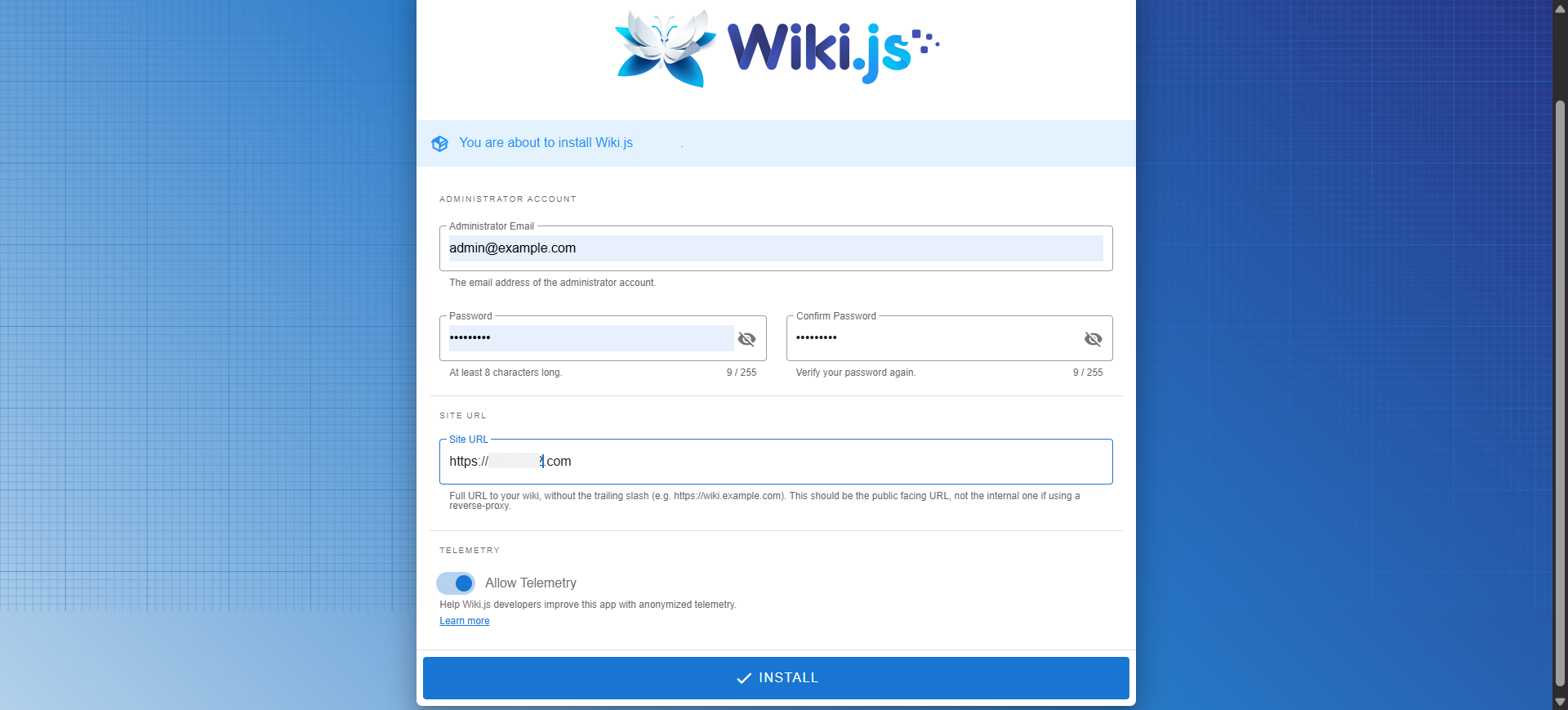
Configure the administrator account and site settings:

Complete the setup and access the dashboard:

You have successfully installed and configured Wiki.js on Ubuntu 26.10 using Docker and PostgreSQL.
CrownCloud - Get a SSD powered KVM VPS at $4.5/month!
Use the code WELCOME for 10% off!
1 GB RAM / 25 GB SSD / 1 CPU Core / 1 TB Bandwidth per month
Available Locations: LAX | MIA | ATL | FRA | AMS