How to Install Drupal with LAMP on CentOS Stream 9
Drupal is a commonly used PHP-based CMS (Content Management System). For small businesses, personal blogs & websites, Drupal can be a good fit. In this article, we are going to learn how to install Drupal on CentOS Stream 9. So, let’s get started.
Pre-requisites :
-
A system with CentOS Stream 9 installed and running.
-
rootaccess to the system. - LAMP Stack installed and running, for this, you can refer to one of our guides on installing the LAMP Stack (Apache, MariaDB and PHP).
Once you're all set, we'll proceed with Drupal installation and configuration.
Install Wget & Developer Tools
yum groupinstall "Development tools"

yum install wget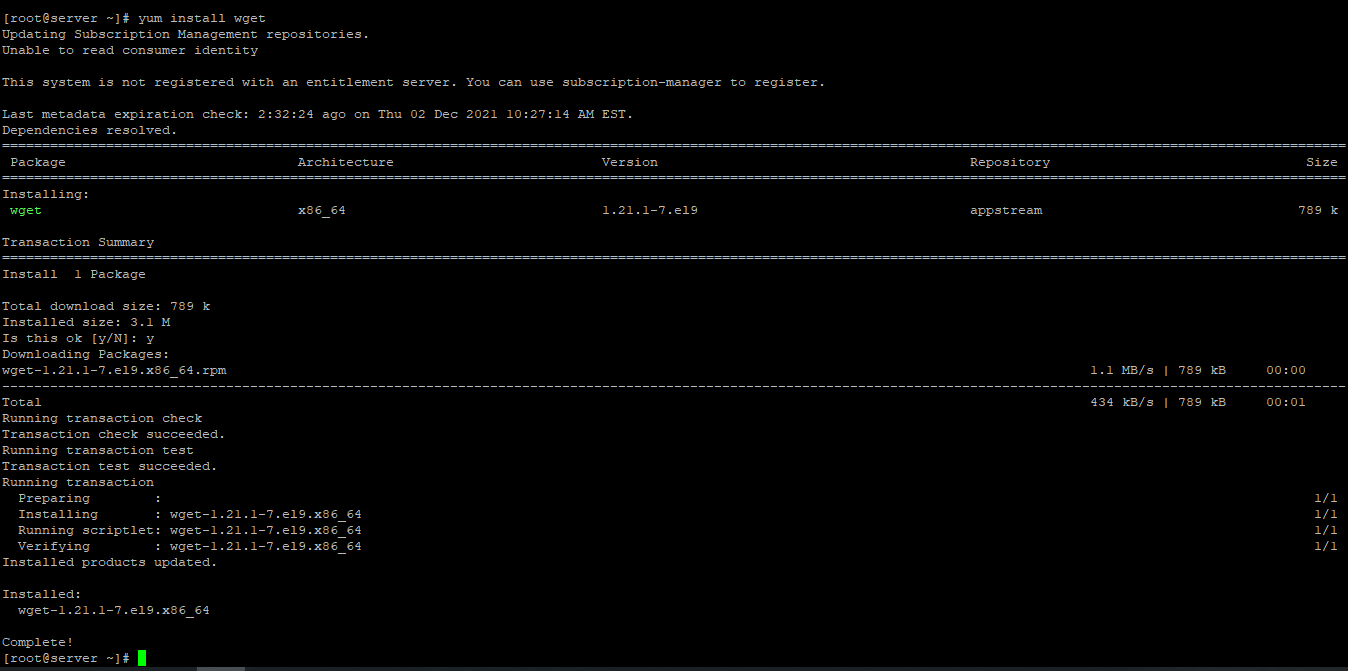
Download Drupal
First, navigate to the /var/www/html directory as follows:
cd /var/www/htmlNow, download the latest Drupal archive from the official website of Drupal with the following command:
wget https://ftp.drupal.org/files/projects/drupal-9.2.10.tar.gzCheck for the latest version here : Drupal Official.
Check for files with the following command.
lsNow, extract the Drupal archive file drupal-9.2.10.tar.gz with the following command:
tar xvzf drupal-9.2.10.tar.gzOnce the Drupal archive file drupal-9.2.10.tar.gz is extracted, a new directory drupal-9.2.10 should be created in the folder. Now, you can remove the drupal-9.2.10.tar.gz file as follows:
rm -v drupal-9.2.10.tar.gzRename the folder to drupal
mv drupal-9.2.10 drupal Setting up FilePermission & Ownership
Create a directory to store website files and rename the default.settings.php file as shown below:
mkdir /var/www/html/drupal/sites/default/files

cp /var/www/html/drupal/sites/default/default.settings.php /var/www/html/drupal/sites/default/settings.php
Now, change the owner and group of the drupal/ directory and its contents to apache as follows:
chown -R apache:apache /var/www/html/drupal/Now, change the permission or the drupal/ directory and its content to 775 as follows:
chmod -Rf 775 drupal/sites/For, some update needed 777.
chmod -Rf 777 drupal/sites/files

chcon -R -t httpd_sys_content_rw_t /var/www/html/drupal/sites/
Install PHP-GD & PHP-MBSTRING.
dnf install php-gd

dnf install php-mbstring
Enable Firewall if not already done.
sudo firewall-cmd --add-service={http,https} --permanent

sudo firewall-cmd --reload
Configuring Apache vHost
First, create a php-fpm configuration file for Drupal with the following command:
vi /etc/php-fpm.d/drupal.confAdd the following codes:
[drupal]
user = apache
group = apache
listen.owner = apache
listen.group = apache
listen = /run/php-fpm/drupal.sock
pm = ondemand
pm.max_children =  50
pm.process_idle_timeout = 10s
pm.max_requests = 500
chdir = /
Now, press i to go to INSERT mode and type in the following lines of codes in the drupal.conf file.
Create a new apache configuration file drupal.conf for Drupal with the following command:
vi /etc/httpd/conf.d/drupal.confAdd the following codes:
<VirtualHost *:80>
ServerAdmin drupal@crowncloud.com
ServerName drupal.crowncloud.com
DocumentRoot /var/www/html/drupal
<Directory /var/www/html/drupal/>
    Options Indexes FollowSymLinks
    AllowOverride All
    Require all granted
</Directory>
ErrorLog /var/log/httpd/drupal_error.log
CustomLog /var/log/httpd/drupal_access.log combined
</VirtualHost>
Change drupal.crowncloud.com with
Your Domain Name. If you are using with IP, Please remove the entire server_name line.
Now, press the Esc key, and type :wq! and press the Enter key to save and exit the file.
Now, restart & check the apache & PHP-FPM service with the following commands:
systemctl restart php-fpm

systemctl restart httpd
Enable Firewall:
firewall-cmd --permanent --add-service=http

firewall-cmd --permanent --add-service=https

firewall-cmd --reload
Configuring Database
Now create a Database, User & Password for Drupal:
mysql -u root

CREATE DATABASE drupal;

CREATE USER 'username'@'localhost' IDENTIFIED BY 'strong_password';

GRANT ALL PRIVILEGES ON drupal.* TO 'username'@'localhost';

FLUSH PRIVILEGES;

exit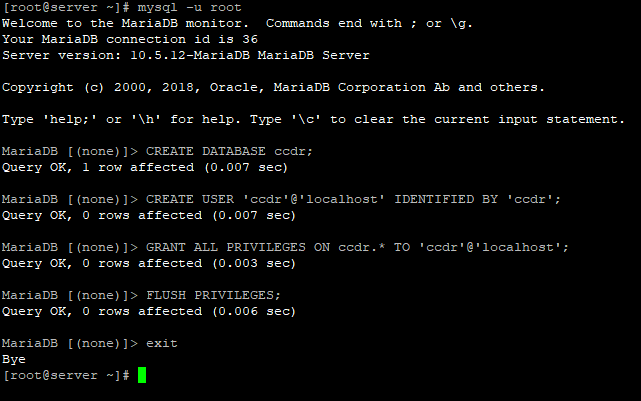
If you want to use SQLite, You can use that. It comes with auto installation.
Configuring Drupal
Now open the IP address from your browser, this will redirect you to configuring the final parts of Drupal installation.
http://IP_addressReplace the
IP_addresswith the actual IP of the server.
Input the Database details which was configured earlier.

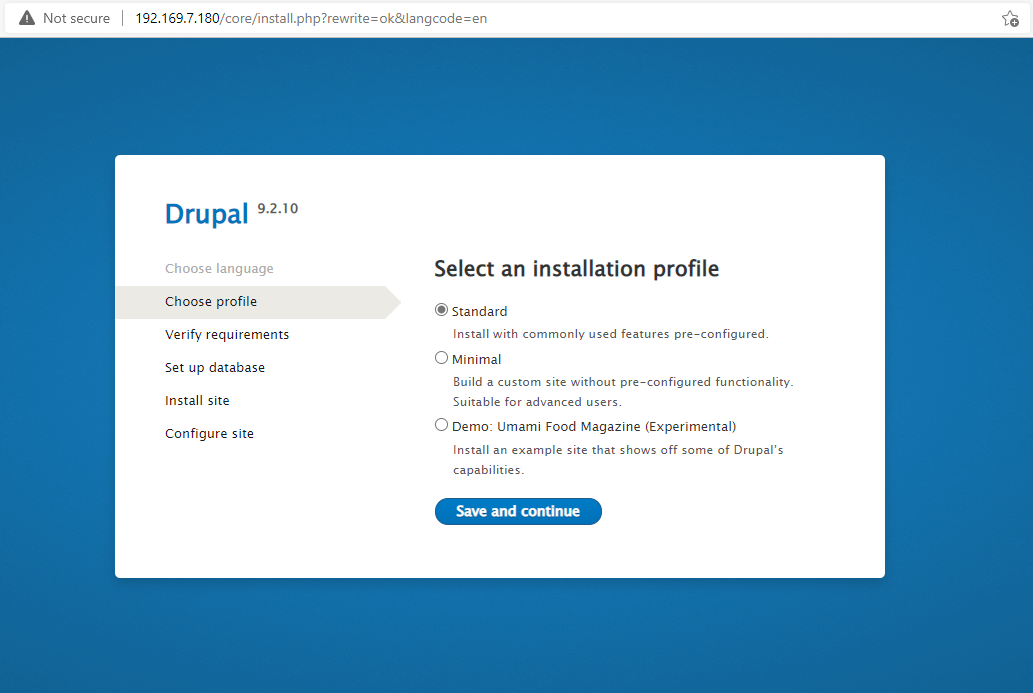
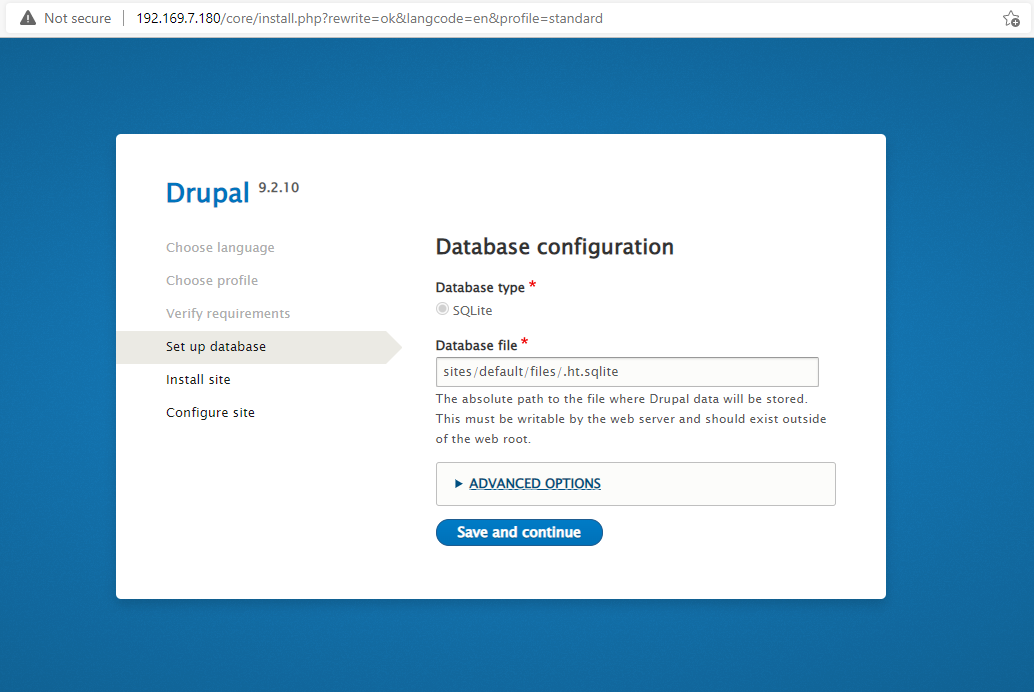
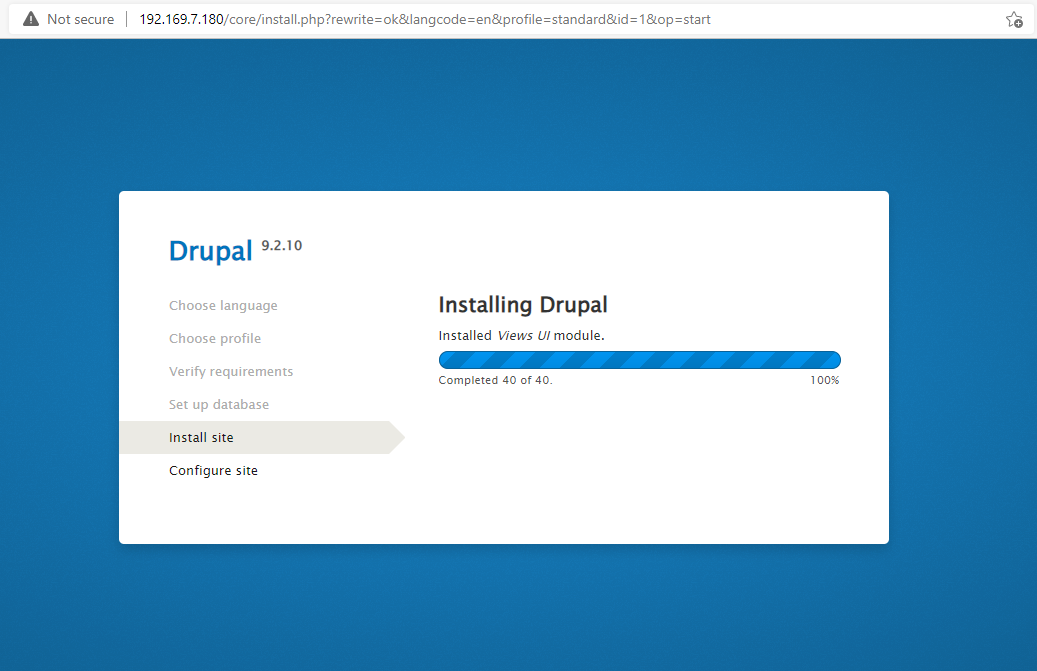
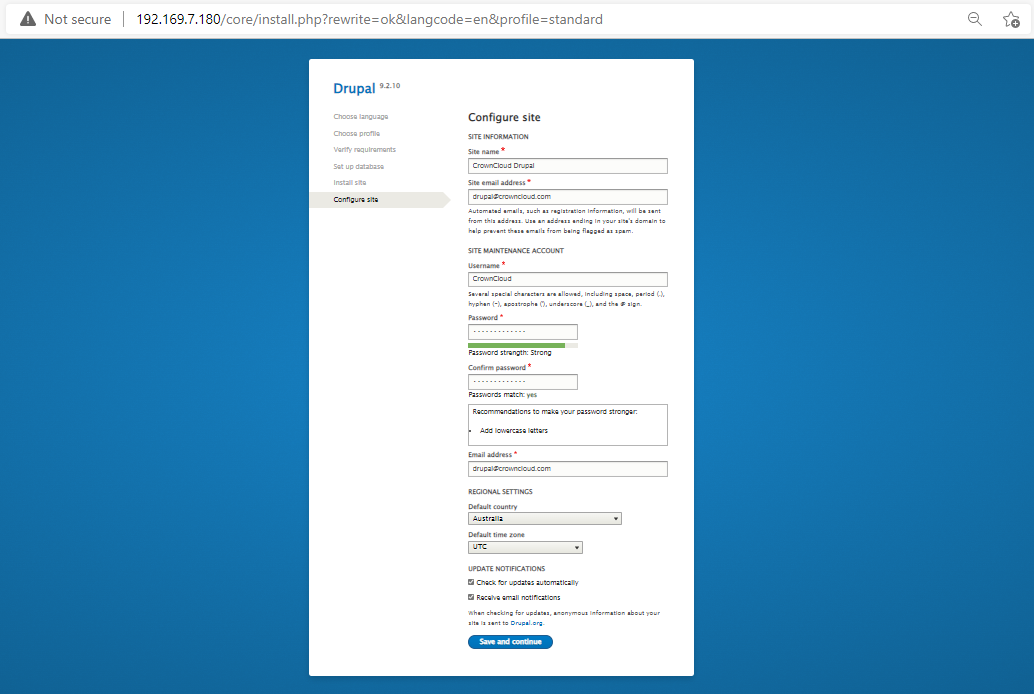
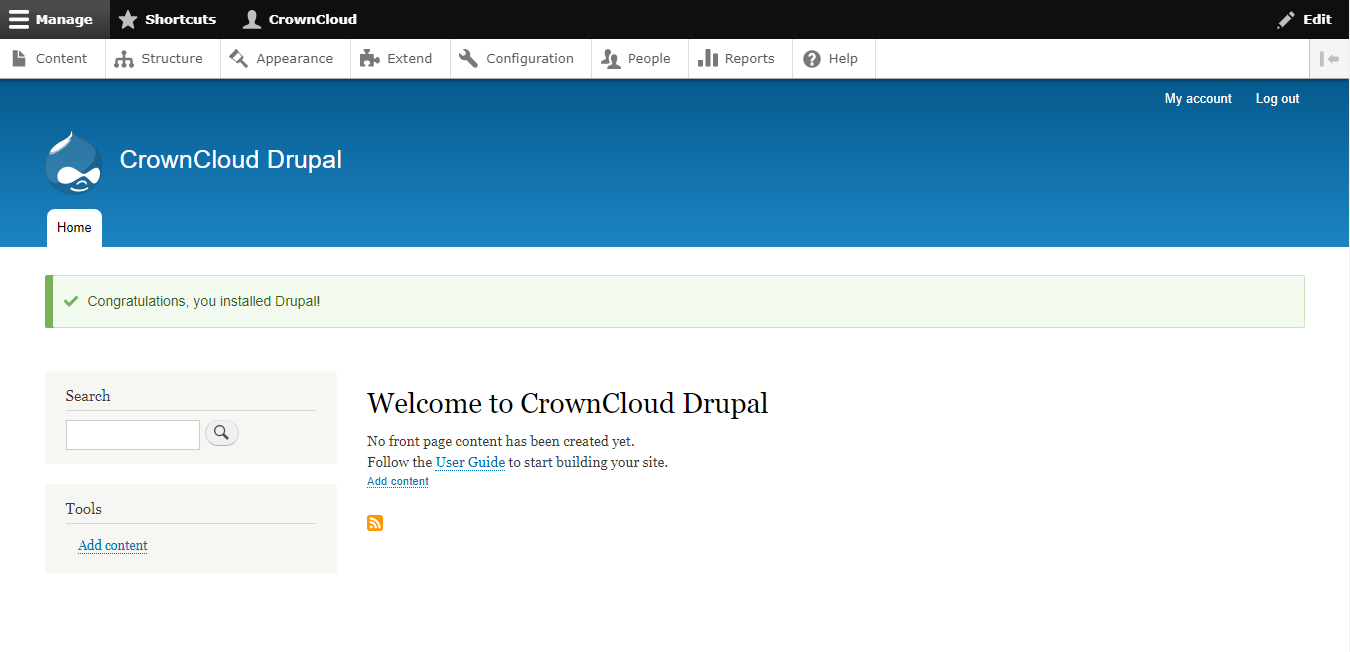
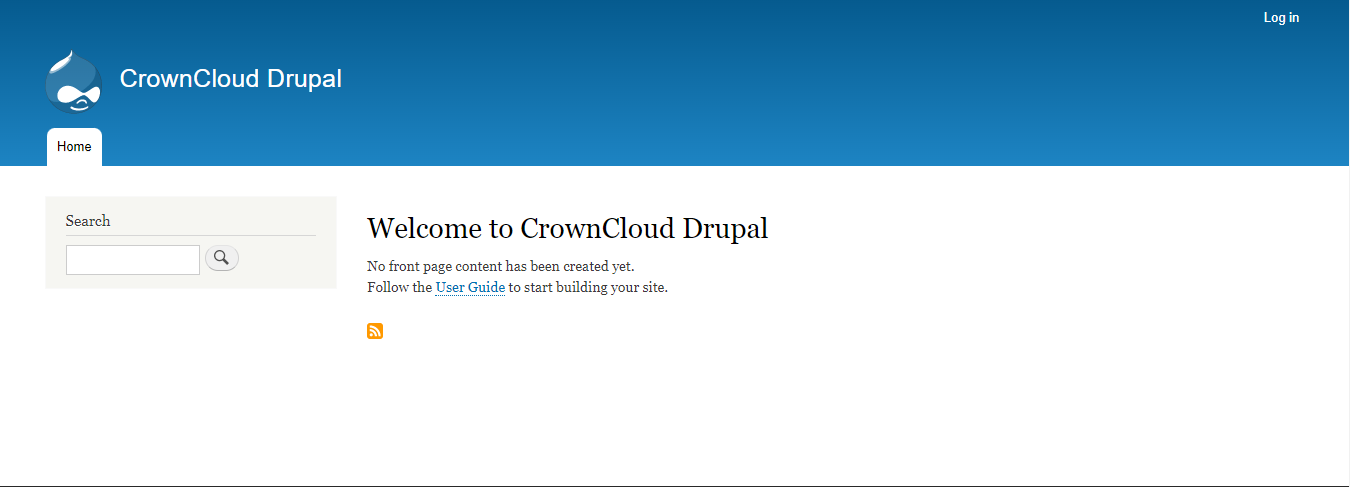
Now you have successfully installed Drupal with LAMP on your server.
CrownCloud - Get a SSD powered KVM VPS at $4.5/month!
Use the code WELCOME for 10% off!
1 GB RAM / 25 GB SSD / 1 CPU Core / 1 TB Bandwidth per month
Available Locations: LAX | MIA | ATL | FRA | AMS